Shadowrocket Genuine App Download Guide

On the App StoreDownload on the App Store

A paid app, sold exclusively on the App Store as a one-time purchase. Verify the storefront region and app details before purchasing and installing. Check the App Store listing for pricing, compatibility, and universal purchase availability.

Buying the client ≠ buying a connection plan. You’ll need your own subscription or server details to connect.

Check the App Store first

App Store and account region

Your Apple ID’s country or region determines which storefront you see.

Shadowrocket isn’t available on the mainland China App Store. If you can’t find it by searching for Shadowrocket, first check the region of the account currently used by the App Store—not just your device’s language or Language & Region settings. A device set to Chinese doesn’t necessarily use the mainland China storefront, and changing the device language won’t change which apps are available in the App Store.

The main button on this page links to Shadowrocket’s App Store listing. The storefront shown after opening it may depend on your account and device, or indicate that the app isn’t available in your region. The storefront path in a web address doesn’t change your account region or guarantee that your account can make a purchase. Use the App Store prompts shown on your device to determine availability.

How to check your country or region

  1. Open Settings, then tap your Apple ID account at the top.
  2. Tap Media & Purchases, then follow the prompts to view your account. Complete any identity verification requested.
  3. Tap Country/Region to check the current setting. If you need to change it, use the option provided on that page.

These steps may vary slightly depending on the system language or interface updates; use the labels shown on your device. The account used for Media & Purchases may differ from the one used for other system services. Make sure you’re checking the account used for App Store purchases—not just the account name at the top of Settings.

Before changing regions, review Apple’s notices about account balance, active subscriptions, payment methods, and Family Sharing settings. Apple’s account process determines whether you’re eligible to make the change; following the steps doesn’t guarantee it will be approved. If a prompt prevents you from continuing, resolve the stated issue first. Don’t repeatedly attempt purchases to check whether the change has taken effect.

How to identify genuine Shadowrocket

The name helps you find the app, but verify the developer, official icon, and app ID together.

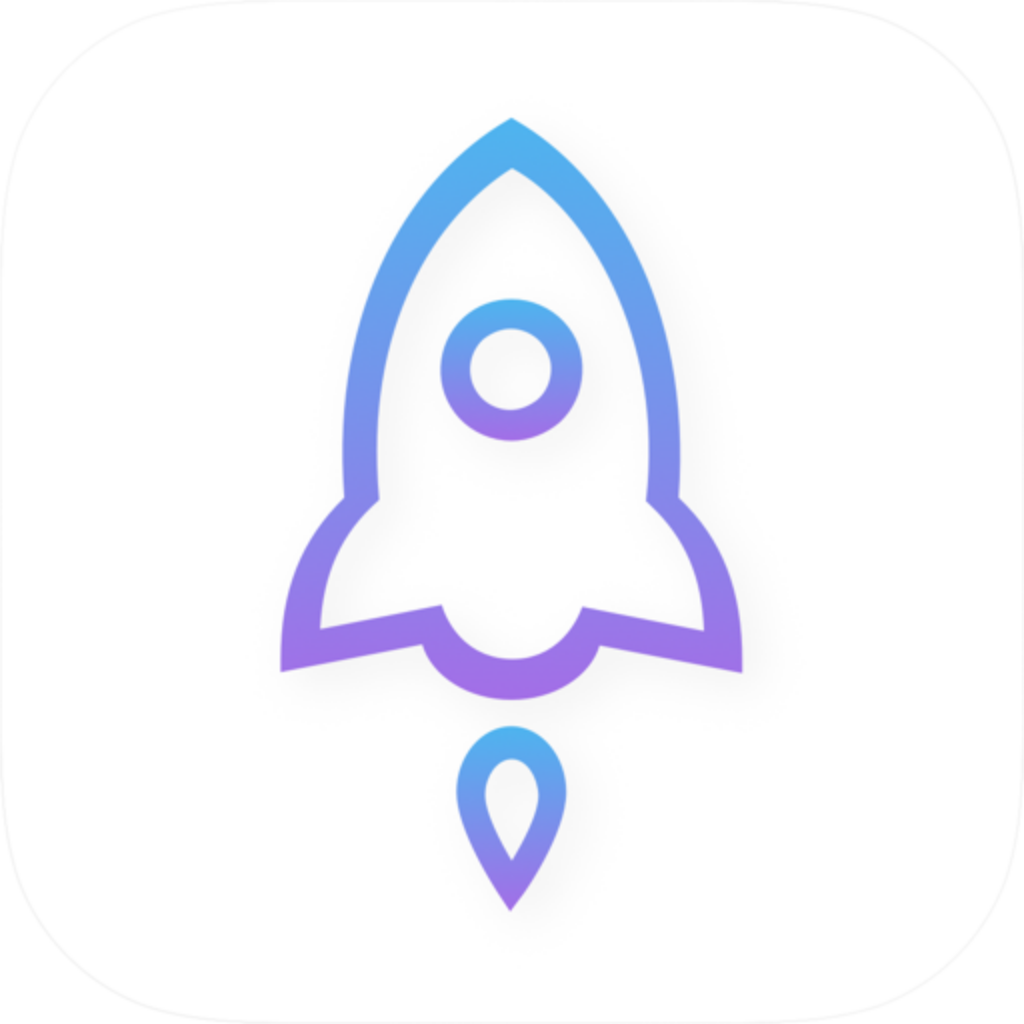
Official Shadowrocket icon: a rocket outlined in blue and purple on a white background

Shadowrocket
Verify the App Store listing

Developer name

Check the developer information on the App Store listing for Shadow Launch Technology Limited; the full name should match exactly. Search results may include apps with identical or similar names or graphics, so don’t rely on the title alone. If the developer name differs, return to the product link on this page and check again.

Official app icon

The official icon is a rocket outlined in blue and purple on a white background, matching the official artwork shown on this page. Use the icon as a visual aid, not as the sole basis for a purchase; also check the developer and app ID. Search ranking, placement, and recommendation labels don’t replace these checks.

App ID

The app ID is 932747118, shown in the product page URL as id932747118. If the App Store opens directly, the URL may not remain visible. You can still verify the app using the product link on this page and the developer information. Check the numeric ID, not a shortened name or nickname in search results.

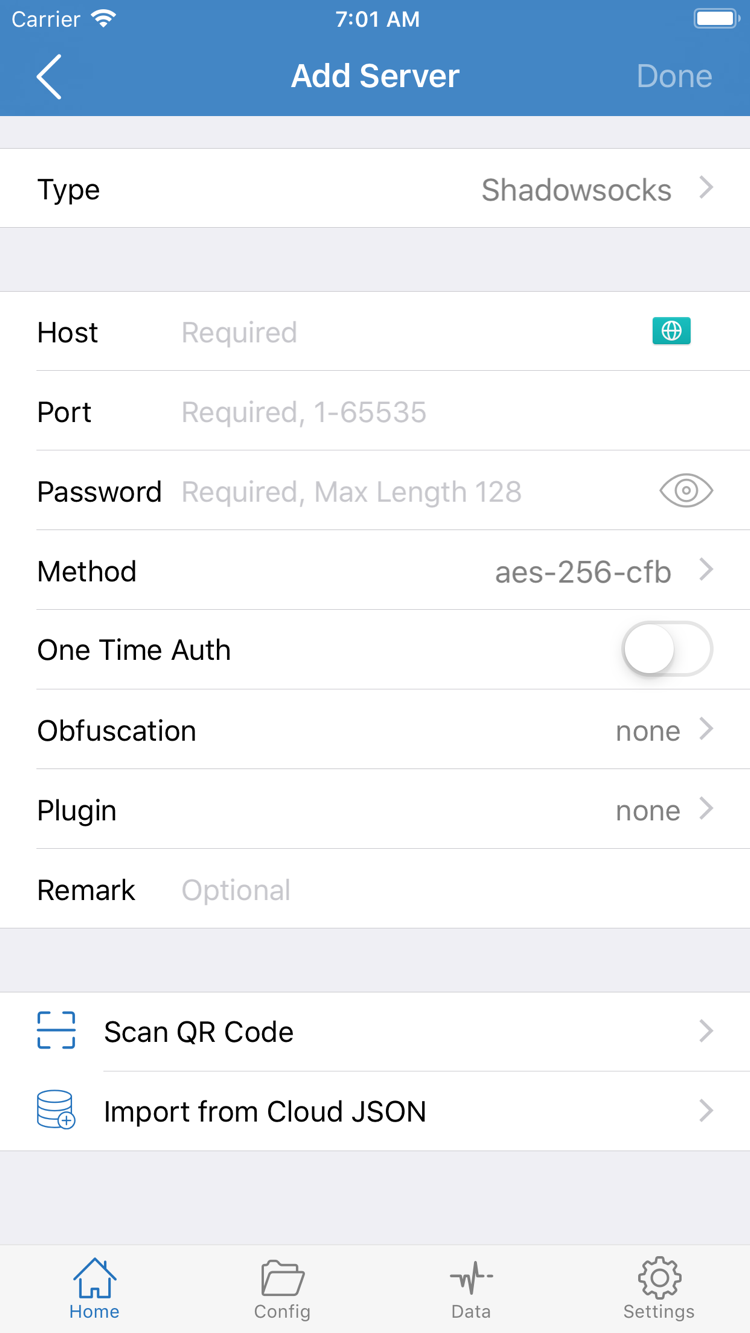
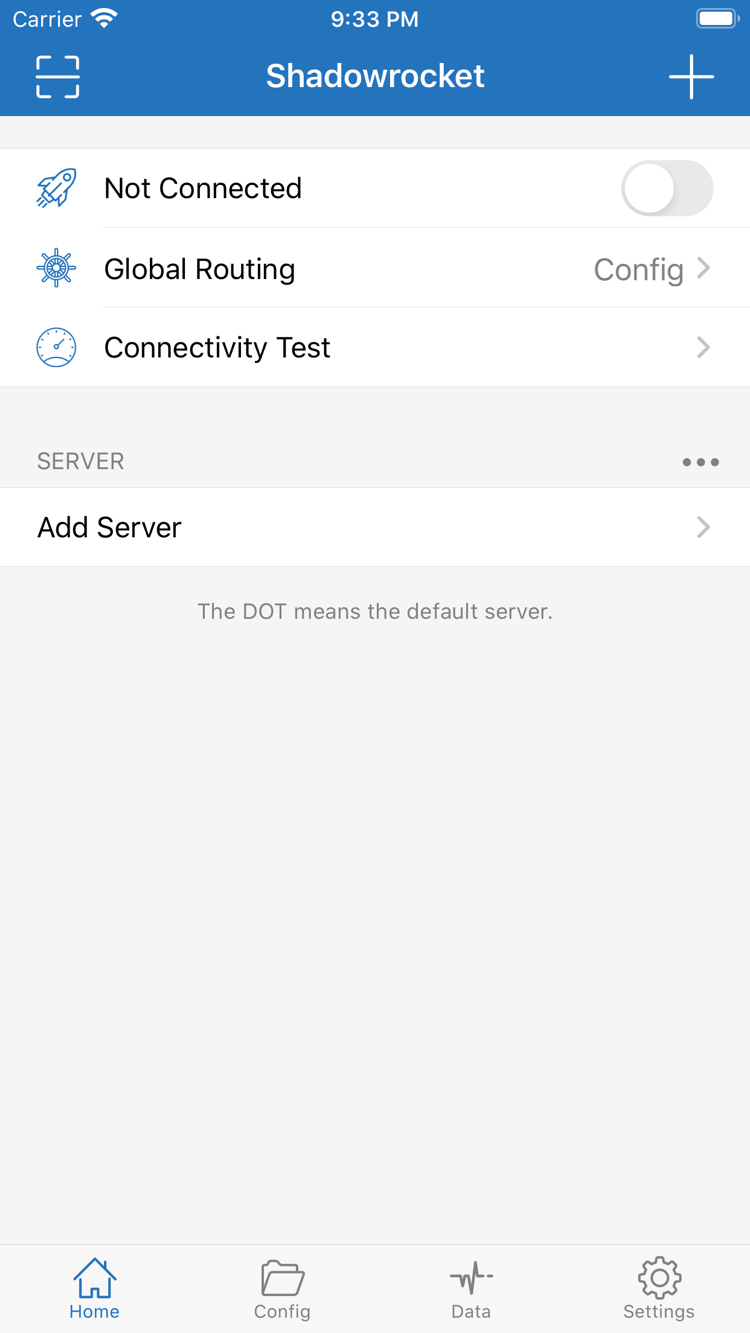
The two images below are official App Store screenshots showing Home and Add Server. Use them to help identify interface labels. Any SERVER entries or field values in the screenshots are illustrative, not server details to use for a connection. The layout may change by device or app update, so don’t assume an item will always appear in the same place.

Official Shadowrocket Home screenshot showing Not Connected, Global Routing, Connectivity Test, SERVER, and Add Server
Home: Find Not Connected, Global Routing, and Connectivity Test, along with Add Server in the SERVER section.
Official Shadowrocket Add Server screenshot showing Type, Host, Port, Password, Method, Scan QR Code, and Import from Cloud JSON
Add Server: Enter your existing server details in fields such as Type, Host, and Port. Scan QR Code and Import from Cloud JSON appear at the bottom.

Installing and opening Shadowrocket on iPhone

Check the App Store purchase, app installation, configuration import, and connection authorization separately.

Purchase from the App Store listing

Open the product page and verify the developer, icon, and app ID before checking device compatibility, the current price, and the purchase button. Refer to the App Store listing for system requirements; don’t rely on system version numbers saved elsewhere. Confirm the payment account and displayed price, then complete any requested identity verification.

After purchasing, wait for the App Store download to finish. Installation is complete when the app icon appears and the app opens normally. If the download remains pending, check your local network, available storage, and any App Store prompts. If payment is complete but the download hasn’t started, check your purchase history first rather than assuming you need to buy the app again.

If you’ve already purchased Shadowrocket, find it under Purchased in your App Store account. You don’t need to change your device language to follow this guide; interface labels are kept in English so you can match them to the options on your device.

Understanding the first connection authorization

Opening the app doesn’t mean you’re ready to connect. First import your own subscription or server details using Subscribe or Add Server, then check that the entries are saved. If you have a purchase record but no connection configuration, that alone doesn’t indicate an app problem.

The first time you try to connect, the system may ask you to add a VPN configuration. This prompt authorizes the app to establish a connection using system networking; it isn’t a request to buy the app again. Before allowing it, make sure the prompt comes from Shadowrocket, which you just opened, then follow the system instructions and complete any identity verification.

After authorization, return to Home to check the connection status and current Global Routing option. If you denied authorization, follow the prompt the next time you connect. Don’t delete other system network configurations that are still in use just to dismiss the prompt. For the complete first-use sequence, see the Getting Started guide.

Universal purchase on iPad and other Apple devices

Check the original purchasing account first, then verify compatibility in the App Store on the target device.

Using the same Apple ID on iPhone and iPad

Shadowrocket is available for both iPhone and iPad. After purchasing once with the same Apple ID, you can download it from Purchased on another compatible device. The purchase is linked to your account, not the device used to make it. Check the App Store listing for system requirements and universal purchase availability, and review the product page on the target device before installing.

If the App Store listing on your iPad shows a price, first check whether Media & Purchases is signed in with the original purchasing account, then review Purchased and your purchase history. Don’t assume the account used for other system services is also the one used by the App Store. If your account or storefront region has changed, confirm which account owns the purchase before deciding what to do next.

The wider iPad screen may change the arrangement, spacing, and navigation compared with iPhone, but interface labels such as Home, Config, Settings, and Add Server are still useful landmarks. When following a guide, look for the same setting name instead of searching for the exact pixel location shown in a screenshot.

Universal purchase covers eligibility to use the app; it doesn’t guarantee that subscriptions, server lists, or Config will appear automatically on another device. After installation, check whether your configuration is available. If it isn’t, import it again from your own saved information, then check Global Routing and connection authorization. Verify the connection separately on each device, as their network environments may differ.

Mac, Apple TV, and Apple Vision

The compatibility section of the same App Store listing includes Mac, Apple TV, and Apple Vision. To use Shadowrocket on one of these devices, open its App Store listing on that device. Check the listing for system requirements, device compatibility, and universal purchase availability. Don’t assume the iPhone interface and instructions apply directly to other devices.

Moving to a new device, reinstalling, and restoring purchases

Reinstalling the app and restoring your connection configuration are separate tasks.

Find the app in Purchased

On your new device, make sure the App Store is signed in with the Apple ID used for the original purchase. Then go to App Store → Account → Purchased, find Shadowrocket, and download it again. Depending on the system, this section may appear as apps or a purchase list in your account. For a valid purchase under the same account, redownloading usually doesn’t require another payment.

If you can’t find the app, first check that you’re using the right account, that the app is available in the current storefront, and that the purchase appears in your history. If you hid the app, it may not appear in the regular list; check your account’s hidden purchases settings. Don’t assume the original purchase is no longer valid based only on search results on a new device.

If the product page still shows a price, pause before paying and check the original transaction. Common causes include using a different purchasing account, a change in account region, or an incomplete original transaction. A displayed price doesn’t by itself mean you need to pay again. Check the account and purchase history, and follow the App Store prompts.

Restore your own subscriptions and server details

After installing the app, check whether Subscribe, SERVER, and Config contain the items you need. Redownloading the app doesn’t guarantee that all configurations saved on your device will be restored. If anything is missing, reimport it using your own subscription link, server details, or personal backup, then verify the protocol type, address, port, and any required authentication fields.

Before changing devices, make sure you can retrieve your subscription or server details, and note your current Config and Global Routing options. Backups may contain authentication information; keep them somewhere you control. Don’t share a complete subscription link or screenshots containing Password in public.

After restoring, check your configuration before trying to connect. If needed, authorize the system VPN configuration again. Check the App Store listing and your Apple account settings for Family Sharing eligibility, what can be shared, and any restrictions. A family member’s account isn’t automatically the account used for the original purchase.
Pricing, one-time purchase, and connection services

Purchasing the client gives you the right to use the app.

Shadowrocket is a closed-source commercial app sold as a one-time purchase, not a monthly subscription. The US App Store reference price is $2.99; other storefronts show local currency. Check the App Store at checkout for the actual amount, tax display, and purchase requirements. The reference price on this page may differ from the final amount shown on your device.

A one-time purchase describes how you buy the client; it doesn’t determine how long any server, subscription, or connection service remains available. Services you already have may have their own expiration dates, data limits, or device restrictions. Buying the app doesn’t change those terms. If a connection fails, first distinguish between app installation, configuration, and connection service issues.

The App Store handles app purchases, redownloads, and app updates. Updating through Subscribe fetches server entries included in a subscription you already have; these are separate processes. An App Store update won’t restore missing subscription details, and updating a subscription won’t change your app purchase history. Check each step separately to avoid confusing one issue with another.

You can manage app updates in the App Store as you prefer and check your Config before and after updating. For instructions on importing, updating, organizing, or backing up a subscription you already have, see the Subscription Guide. If the app is installed but the connection status is unexpected, start with the Troubleshooting guide, note the message shown, and check each item in turn.

Download and purchase FAQ

First identify whether the issue is with the storefront, account, installation, or configuration.

Why can’t I find Shadowrocket on the App Store?

Shadowrocket isn’t available on the mainland China App Store. Your Apple ID’s country or region determines which storefront you see. Check it under Settings → Apple ID → Media & Purchases → Country/Region. Search for Shadowrocket and verify the developer, Shadow Launch Technology Limited, and app ID 932747118.

What if the App Store listing opens, but the purchase or download won’t complete?

Follow the App Store prompts to identify whether the issue involves payment, account verification, device compatibility, or a pending download. Then check your account region, payment method, available storage, and local network. Refer to the App Store listing for system requirements, and don’t retry payment until you’ve confirmed the transaction status.

Do I need to buy Shadowrocket again when I get a new device?

Sign in with the Apple ID used for the original purchase, then find Shadowrocket under App Store → Account → Purchased and download it again. You usually won’t need to pay again. If the listing still shows a price, check the purchasing account, purchase history, and storefront region. After restoring the app, check your own subscriptions, server details, and Config.

Can I install Shadowrocket on my iPad if I bought it for iPhone?

Shadowrocket is available for both iPhone and iPad. After purchasing once with the same Apple ID, you can download it from Purchased on a compatible iPad. Check the App Store listing for system requirements and universal purchase availability. A purchase record does not mean your configuration will sync automatically between devices.

Can I install Shadowrocket on Mac, Apple TV, or Apple Vision?

The compatibility section of the same App Store listing includes Mac, Apple TV, and Apple Vision. Check the listing in the App Store on your target device for system requirements, device compatibility, and universal purchase availability.

What if the app opens in English?

This manual keeps interface labels such as Home, Global Routing, Add Server, and Subscribe in English so you can match them to the app. Use the official screenshots on this page to identify each item, then read the Getting Started guide. The language and layout may vary by device; you don’t need to change your device language to match the screenshots.

Download Shadowrocket